
Crop Image
Visually crop images to a custom size or aspect ratio.
How to use Crop Image
- 1
Upload a JPG, PNG, or WebP image by dropping it onto the upload area or clicking to browse.
- 2
Select a preset aspect ratio (1:1 square, 16:9 widescreen, 4:3, etc.) or choose free-form for a custom crop.
- 3
Drag the crop handles to position the selection exactly where you want it on the image.
- 4
Preview the cropped area inside the selection box to confirm framing before exporting.
- 5
Click 'Crop' and download the trimmed image in its original format.
Real examples of Crop Image in action



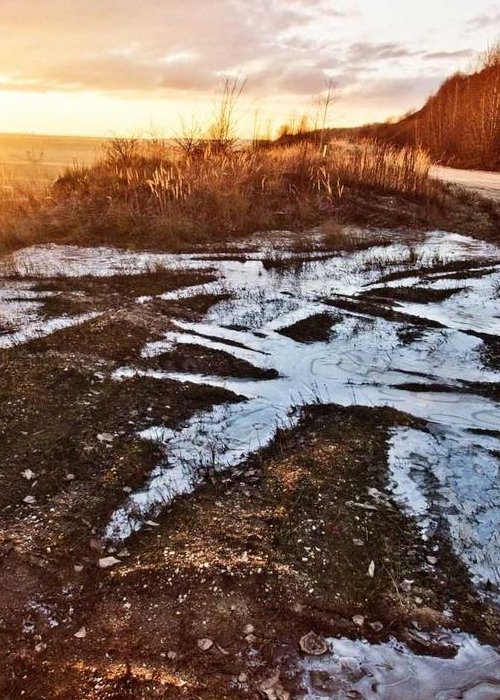
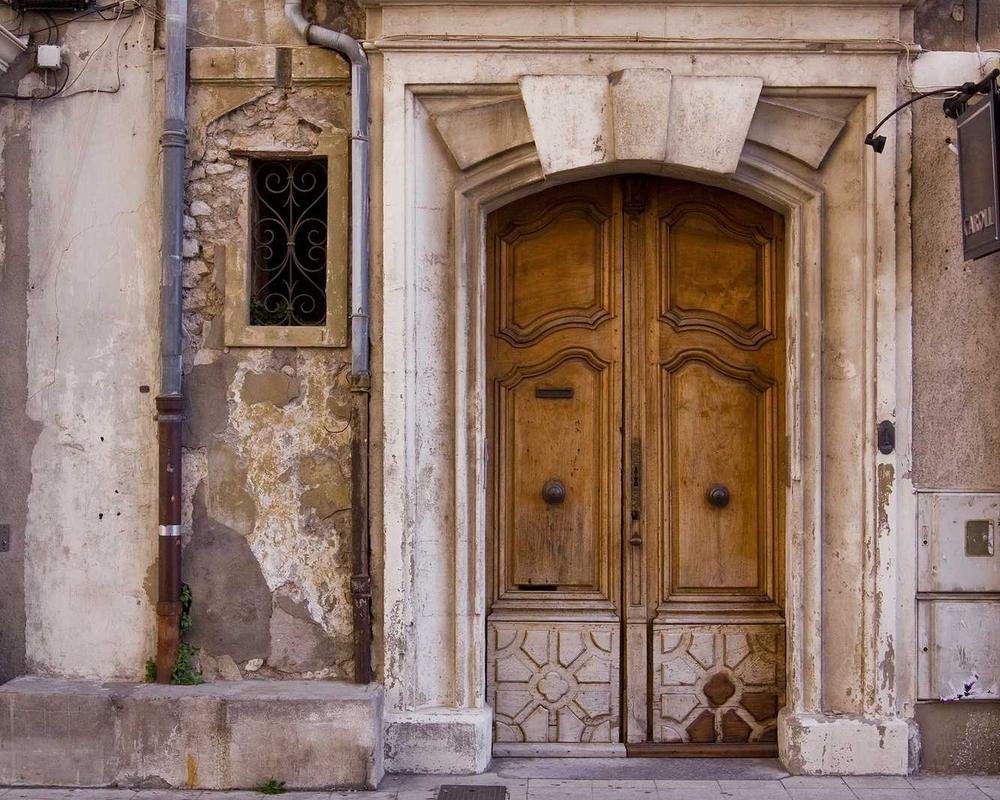
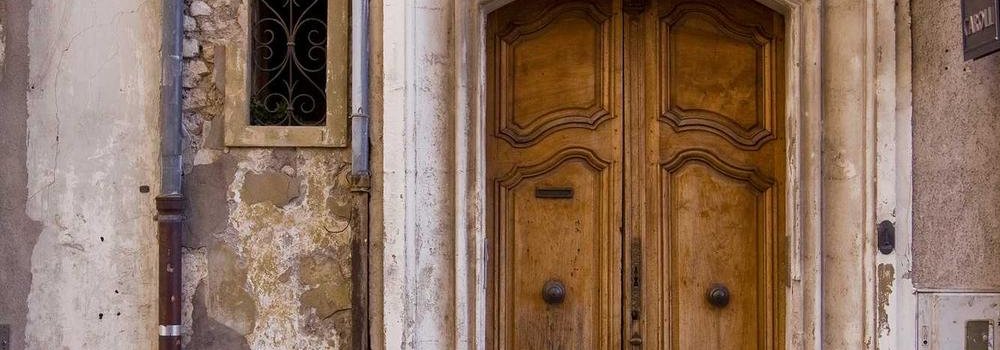
Who is Crop Image for?
Instagram creators cropping landscape shots to 1:1 squares for the grid
YouTubers framing 16:9 thumbnail regions from larger source images
Office workers trimming whitespace from scanned documents and screenshots
E-commerce sellers cropping product shots to a uniform catalog ratio
Profile-picture uploaders tightening the frame around a face for avatars
Why use Crop Image?
- Preset aspect ratios for common platforms — 1:1 for Instagram, 16:9 for YouTube thumbnails, 4:3 for presentations.
- Free-form mode lets you crop to any arbitrary shape without ratio constraints.
- Visual drag handles make it easy to fine-tune the selection down to the pixel.
- Runs entirely in your browser with no uploads — your photos stay private.
- Original image is never modified — only the cropped region is exported.
Common use cases
- Create square crops for Instagram posts from landscape or portrait photos.
- Trim whitespace or unwanted borders from scanned documents and screenshots.
- Crop product images to a consistent ratio for an e-commerce catalog grid.
- Frame a subject tightly for a profile picture or avatar image.
- Cut a 16:9 section from a photo for use as a YouTube thumbnail or blog header.
How Crop Image keeps your data private
Cropping uses HTML Canvas in your browser — the original photo is loaded into a canvas element and only the selected region is exported as a new file. Because nothing is uploaded, you can safely crop screenshots containing private messages, internal dashboards, or personal IDs without those sensitive portions ever touching a network.
How Crop Image compares to alternatives
Honest comparison to other popular options — pick the right tool for the job.
| Tool | Main limitation |
|---|---|
| Photopea | Full-featured but slow to load and shows ads between operations |
| Canva | Requires account sign-up just to crop a single image |
| ILoveIMG | Uploads images to a server for processing and limits free batch size |
| Preview.app (macOS) | Mac-only, and the ratio presets are limited to basic sizes |
| Crop Image | Free, runs in your browser, no sign-up, no watermarks, no file-size limits beyond your device memory. |
About Crop Image
Cropping is one of the most basic yet essential image editing operations. Xevon Tools' Crop Image tool gives you a visual cropping interface with both preset aspect ratios and free-form mode. Preset ratios cover the most common needs — 1:1 for Instagram, 16:9 for video thumbnails, 4:3 for presentations — while free-form mode lets you select any region. Drag handles make pixel-level positioning easy, and a live preview inside the selection box confirms your framing before you export. The original image is never modified; only the cropped region is saved as a new file. Because everything runs in your browser, your photos are never uploaded to a server. Whether you are preparing social media posts, trimming scans, or framing product photos for a catalog, this tool handles the job in seconds on any device.
Frequently asked questions
Embed Crop Image on your site
Add this tool to your own website, blog, or internal tool page with one line of code. Free to use, no attribution required (but appreciated).
<iframe src="https://www.xevontools.com/embed/crop-image" width="100%" height="640" style="border:1px solid #e2e8f0;border-radius:12px;" title="Crop Image — Xevon Tools"></iframe>